
How to Share a Campaign
A guide for Owners, Admins, and Managers to share a live campaign with contributors using a link, QR code, email, social media, or direct invite.
🎯 Who is this for?
This guide is for Owners, Admins, and Managers who need to distribute a live campaign to contributors. Your campaign must be launched before you can share it.
Overview
Once your campaign is live, how you share it depends on one key setting: whether your campaign is Public or Private.
Public campaigns can be shared broadly using a link, QR code, email, or social media. Anyone with the link can respond. Private campaigns use a Distribute flow, where you invite specific participants by email or from your workspace members.
Both paths are covered in this guide.
Step One: Go to Your Campaign Dashboard

- Go to the left panel of your Homepage Dashboard.
- Click the title of the launched campaign you want to share.
💡 Tip: Only launched campaigns can be shared. If the sharing options are not visible, check that your campaign has been launched.
Step Two: Share a Public Campaign
If your campaign is set as a Public Campaign, the Share button is available at the top of your campaign dashboard.

- Click the Share button at the top of the dashboard. A panel opens with all available sharing methods.
Copy Link
- The first method you can use is the Campaign Link. Click Copy Link to copy the campaign URL to your clipboard.
- Paste it into any message, email, or document to send to contributors.

QR Code
- The second method is by sharing the campaign QR Code. Click Download QR Code to save a QR code image to your device.
- Print or display it anywhere contributors can scan it with a mobile device.

Social Media
- The third method is sharing the campaign via social media accounts. To do this, select a social media platform from the options shown.
- Folktale will open a pre-filled post with your campaign link ready to publish.
- Lastly, you can also share the campaign directly via email. Scroll down on your campaign dashboard to find the Email button.
- Click it to open a pre-filled email containing your campaign link.
- Add your recipients and send.

Step Three: Share a Private Campaign
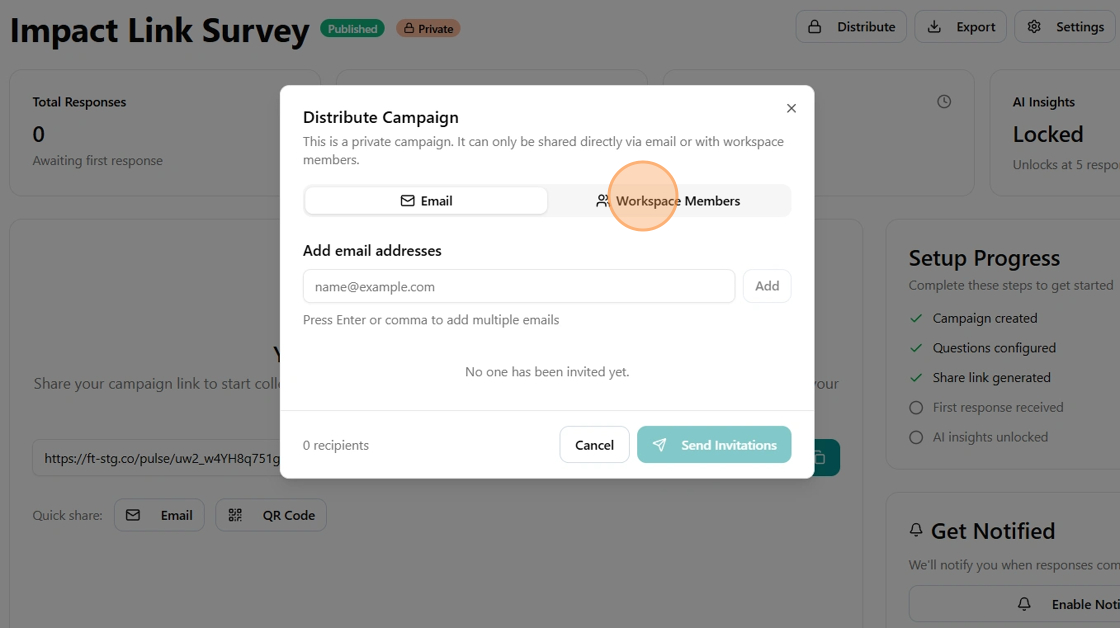
If your campaign is set as a Private Campaign, the Share button is not available. Instead, use the Distribute button to invite specific participants directly.

Invite via Email
- Click the Distribute button on your campaign dashboard.
- Enter your participant's email address and send the invitation. They will receive a direct link to access the campaign.
Invite Workspace Members
- In the Distribute panel, select the option to invite workspace members.
-
Choose the members you want to contribute to the campaign and send the invitation.
💡 Note: Only workspace members can be invited to contribute to a campaign. Normal followers without an invitation cannot submit responses.
Done
Your campaign is now shared. As participants submit responses, Folktale's AI will begin surfacing insights in your campaign dashboard.
🎉 Congratulations! You can now collect responses from your participants.