
Edit Your Campaign Settings
🎯Who is this for?
Workspace Owners, Admins, and Collaborators who need to update a campaign after it has been created.
Collaborators can edit settings only for the selected campaign they were assigned to. Meanwhile, owners and admins can access all campaigns.
Overview
Campaign Settings lets you adjust a campaign after it has been created. Settings are organised across four tabs:
To open your campaign settings, go to your Campaign Dashboard and click the Settings button. The Settings panel will open with four tabs: Details, Schedule, Questions, and Consent.

For any changes made in the Campaign settings, please make sure to click the Save Changes button to finalise them.

⚠️ Important: Please review and finalise your settings before sharing the campaign. Once contributors accept the campaign invitation link, all settings will be locked except for the Campaign End Date to protect data integrity and avoid confusion for contributors who have already submitted or are in the process of submitting.
Campaign Details
The Campaign Details tab lets you update the core information about your campaign, which includes.
Name and Description
Through this field, you can edit the campaign name, description, and any other general information as needed.
Media Settings
Scroll down to the media settings to choose which file formats contributors can use to respond (video, audio, image, or text). Toggle each format on or off to match your collection needs.
Response Settings
In the Response Settings section, toggle on Anonymous responses if you want contributors to be able to respond without sharing their identity. Toggle on Multiple responses to allow contributors to submit more than once.
Quick Response Settings
Review your Quick Response Settings in this section.
- To find this tab, click the Details tab after opening the Campaign Settings.
- To edit the campaign details, simply write the changes and click the Save Changes button oncee you have finalised the changes.

💡 Note: Registration Fields, which are the information collected from contributors at the start of the campaign, cannot be changed after a campaign is created. These can only be set during campaign creation.
Campaign Schedule
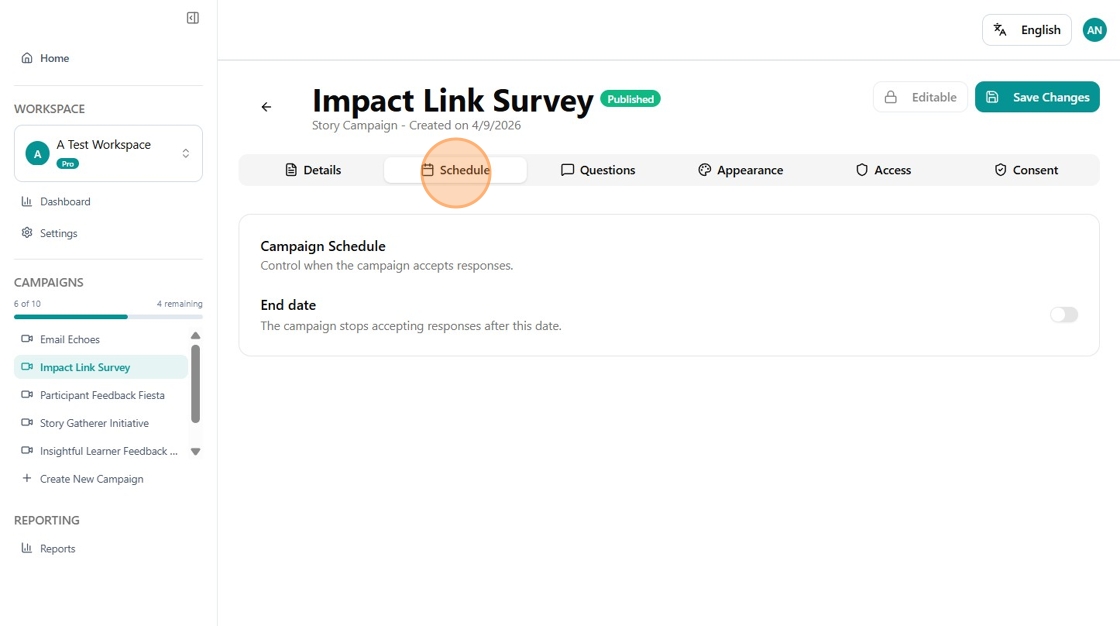
The Schedule tab controls when your campaign stops accepting responses. Setting an end date is optional. If you leave it, the campaign will continue to open and accept responses until you close it.
⚠️ Please note that Folktale cannot delete the campaign, only close the campaign. This is because the campaign is tied to your subscription plan and the consent of those who have contributed.
- To find this tab, click the Schedule tab after you open the Campaign Settings.
- Toggle on End Date to set a closing date and time for the campaign.
-
Select the date and time you want the campaign to stop accepting responses.
Campaign Questions
The Questions tab shows your full list of campaign questions. You can edit or remove questions here.
- To find this tab, click the Questions tab after opening the Campaign Settings.
- To edit a question, click the pencil icon next to it and update the text.
- To remove a question, click the trash icon.
Changing questions after a contributor accepts the campaign invitation link will affect the consistency of your data. So, if a contributor accepts your campaign invitation link, you will not be able to edit the questions anymore. It is important to finalise your questions before the campaign goes live.

Campaign Consent Form
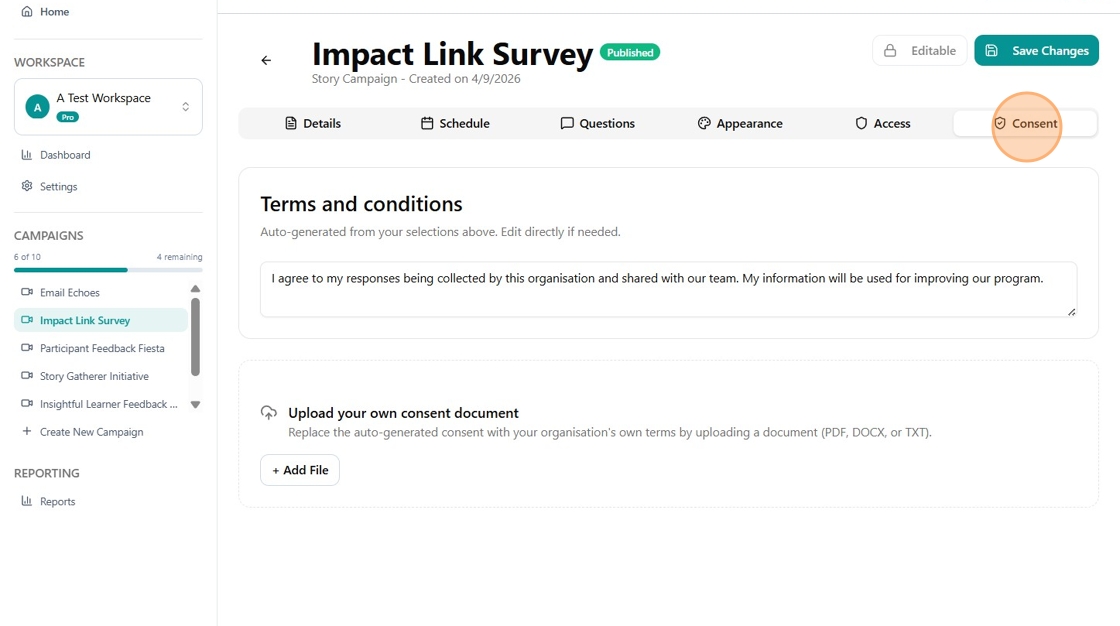
The Consent tab shows the terms and conditions that participants see before they submit a response. You are also able to upload your own consent form, which will appear once contributors open the campaign invitation link.
- To find this tab, click the Consent tab after opening the Campaign Settings.
- Edit the terms and conditions text directly in the text box.
-
Alternatively, upload your own consent document using the upload field.
🎉 Congratulations! You have successfully learned how to edit your campaign settings.
Related Articles
- How to Create a Campaign
- How to Launch a Campaign
- How to Share Your Campaign
- Folktale Roles and Permissions
- Contribute as a Guest vs Folktale Account